Development
Local installation¤
Start by forking the project by clicking the Fork button up in the right corner in the GitHub. This makes a copy of the repository in your own name. Now you can clone this repository locally and start adding features:
Installing uv¤
This project uses uv for dependency management. Install uv first:
On macOS and Linux:
On Windows:
Or using pip:
For more installation options, see the uv documentation.
Installing dependencies¤
To install all development dependencies (including the package itself in editable mode):
This will:
- Create a virtual environment (if one doesn't exist)
- Install all project dependencies and dev dependencies
- Install the package in editable mode
- Generate or update
uv.lockfile
To install dependencies for a specific group:
uv sync --group dev- Development dependencies (for local development)uv sync --group ci- CI dependencies (for running tests in CI)uv sync --group docs- Documentation dependencies (for building docs)
Managing dependencies¤
Adding a new dependency:
# Add to main dependencies
uv add <package-name>

# Add to dev dependencies
uv add --group dev <package-name>

# Add to docs dependencies
uv add --group docs <package-name>
Removing a dependency:
Updating dependencies:
# Update all dependencies to latest compatible versions
uv lock --upgrade

# Then sync to apply updates
uv sync --group dev
Switching between environments:
# Activate the virtual environment
source .venv/bin/activate  # On macOS/Linux
# or
.venv\Scripts\activate  # On Windows

# Or use uv run to run commands in the environment
uv run pytest
uv run ruff check .
Running tests¤
Now you can run the tests to make sure everything works as expected:
The library is also tested across many versions of Python and Django. To run tests that way:
pyenv install -s 3.10
pyenv install -s 3.11
pyenv install -s 3.12
pyenv install -s 3.13
pyenv install -s 3.14
pyenv local 3.10 3.11 3.12 3.13 3.14
tox -p
To run tests for a specific Python version, use:
NOTE: See the available environments in tox.ini.
Selecting tests by marker¤
The suite is split into three lanes via pytest markers. The default test run skips the two heavyweight lanes:
@pytest.mark.e2e— browser-based end-to-end tests. Applied automatically by the@with_playwrightdecorator, so you don't tag tests by hand.@pytest.mark.benchmark_snapshot— heavy benchmark snapshot tests (the fourtest_benchmark_*.pyfiles). Applied automatically bypytest_collection_modifyitemsintests/conftest.pybased on filename, so new tests added to those files are picked up without further configuration.
You can target a single lane:
# Just the fast unit tests (the default — skips E2E and benchmark)
pytest -m "not e2e and not benchmark_snapshot"

# Just the E2E tests
tox -e e2e

# Just the benchmark snapshot tests
tox -e benchmark_snapshot
The default tox env (e.g. tox -e py314-django52) runs the unit-test lane in parallel with pytest-xdist (-n auto). One exception: tests/test_templatetags_provide.py is force-run serially because it asserts on shared template-cache state that the parallel workers would race on.
Linting and formatting¤
To check linting rules, run:
To format the code, run:
To validate with Mypy, run:
You can run these through tox as well:
Playwright tests¤
We use Playwright for end-to-end tests.
Tests decorated with @with_playwright automatically run across all major browsers: Chromium, Firefox, and WebKit. This ensures cross-browser compatibility.
Test functions must include the browser and browser_name fixtures to work correctly.
from django_components.testing import djc_test
from tests.e2e.utils import BrowserType, with_playwright
from playwright.async_api import Browser

@djc_test
class MyTest:
    @with_playwright
    async def test_script_loads(self, browser: Browser, browser_name: BrowserType):
        page = await browser.new_page()
        await page.goto(f"{TEST_SERVER_URL}/my-page")
        assert page.content() == "My page"
You will need to install Playwright to run these tests. If you've already run uv sync --group dev, Playwright should be installed. Then install the browsers:
# All three browsers (matches the default local behavior)
playwright install chromium firefox webkit --with-deps

# Or, if you only want to run against one browser, install just that one
playwright install chromium --with-deps
After Playwright is ready, run the E2E lane:
Selecting which browsers E2E tests run against¤
By default, @with_playwright parametrizes each test across Chromium, Firefox, and WebKit. To limit which browsers are used (e.g. when you've only installed one), set the DJC_TEST_BROWSERS environment variable:
# Only run against Chromium
DJC_TEST_BROWSERS=chromium tox -e e2e

# Run against Chromium and Firefox
DJC_TEST_BROWSERS=chromium,firefox pytest -m e2e
The PR-time e2e lane sets DJC_TEST_BROWSERS=chromium for speed. A separate weekly workflow (.github/workflows/tests-cross-browser.yml) runs the suite against Chromium, Firefox, and WebKit in parallel and catches browser-specific regressions. Running locally without the variable uses all three browsers.
E2E Test Server Configuration¤
When writing E2E tests, it consists of 2 parts:
- Define endpoints on a Django test server that runs during tests and serves the pages/components/files that we want to fetch and render in the browser.
- The actual code that uses Playwright browser automation to test the logic.
The Django test server is defined tests/e2e/testserver/.
But this means splitting your logic across 2 places. To avoid this, you can co-locate the code with your test file using the server() function pattern.
Define a server() function in your test file that returns a dictionary mapping URL paths to view functions. The Django test server will automatically discover and register these during startup:
# tests/test_component_js_e2e.py
from django.http import HttpResponse
from django.template import Context, Template
from django_components import Component, register, types
from django_components.testing import djc_test
from tests.e2e.utils import TEST_SERVER_URL, with_playwright

def server():
    """
    Define server-side components and views for E2E tests.

    This function is automatically discovered and called by the testserver
    to register URL patterns, views, and components.
    """
    @register("my_component")
    class MyComponent(Component):
        template: types.django_html = """
            <div id="my-component">Hello</div>
        """

        js: types.js = """
            console.log("Component loaded");
        """

    def my_view(_request):
        template_str: types.django_html = """
            {% load component_tags %}
            <!DOCTYPE html>
            <html>
                <head>
                    {% component_css_dependencies %}
                </head>
                <body>
                    {% component 'my_component' / %}
                    {% component_js_dependencies %}
                </body>
            </html>
        """
        template = Template(template_str)
        rendered = template.render(Context({}))
        return HttpResponse(rendered)

    return {
        "/my-page": my_view,
    }

@djc_test
class MyTest:
    @with_playwright
    async def test_my_component(self, browser: Browser, browser_name: BrowserType):
        page = await browser.new_page()
        await page.goto(f"{TEST_SERVER_URL}/my-page")
        # Your test assertions here
This pattern eliminates the need to manually update testserver/urls.py, testserver/views.py, and testserver/components/__init__.py when adding new E2E tests.
Snapshot tests¤
Some tests rely on snapshot testing with syrupy to test the HTML output of the components.
If you need to update the snapshot tests, add --snapshot-update to the pytest command:
Or with tox:
How CI runs your tests¤
GitHub Actions splits the test suite across multiple jobs in .github/workflows/tests.yml. The split exists so that expensive setup (Playwright browsers, heavy benchmark renders) happens once per CI run instead of once per Python/OS cell.
The job lanes¤
| Job | Matrix | When | What it runs | Tox env |
|---|---|---|---|---|
build | Ubuntu × Python 3.10–3.14, plus Windows × Python 3.10 and 3.14 | Every push / PR | Unit tests in parallel with pytest-xdist. Skips E2E and benchmark markers. No Playwright install. | tox |
e2e | Ubuntu × Python 3.14 | Every push / PR | Only @pytest.mark.e2e tests. Installs Chromium only. Sets DJC_TEST_BROWSERS=chromium. | tox -e e2e |
benchmark_snapshots | Ubuntu × Python 3.14 | Every push / PR | Only @pytest.mark.benchmark_snapshot tests. | tox -e benchmark_snapshot |
coverage | Ubuntu × Python 3.14 | Every push / PR | Unit-test lane with coverage, fails under 75%. | tox -e coverage |
ruff, mypy | Ubuntu × Python 3.14 | Every push / PR | Lint and type-check. | tox -e ruff, tox -e mypy |
e2e_cross_browser | Ubuntu × Python 3.14 × {chromium, firefox, webkit} | Weekly cron (Mon 06:00 UTC) + manual dispatch | E2E suite against each browser, one cell per browser. Chromium is included as a baseline. On scheduled failures, files or comments on a tracking issue labeled ci-cross-browser-failure. See tests-cross-browser.yml. | tox -e e2e (with DJC_TEST_BROWSERS=<browser>) |
When the weekly cross-browser run fails¤
When the scheduled run (not a manual dispatch) fails, a notification job opens or updates a GitHub issue labeled ci-cross-browser-failure. The first failure creates the issue; subsequent failures add a comment to the same issue instead of opening a new one. Close the issue manually once the cross-browser run is green again — the next failure after the issue is closed will open a new one.
Triage flow when you see one of these issues:
- Open the linked workflow run and check which matrix cells (chromium / firefox / webkit) failed.
- If only firefox or webkit failed, the bug is browser-specific. Reproduce locally with
DJC_TEST_BROWSERS=firefox tox -e e2e(after installing that browser). - If chromium also failed, the PR-time
e2elane would have caught the same thing on the next push, so the most likely cause is flakiness or an environmental regression (Playwright version, browser binary, runner image).
Windows coverage is smoke-only¤
The Windows matrix runs Python 3.10 and 3.14 only, not the full Python range. The intent is to catch path-handling regressions on Windows without paying full matrix cost. A Windows-specific failure on Python 3.11/3.12/3.13 will not appear in CI.
How tests get sorted into lanes¤
- E2E tests get the
e2emarker from the@with_playwrightdecorator, which also pulls in thedjango_dev_serverfixture. So writing@with_playwrightis the only thing you need to do to route a test into the E2E lane. - Benchmark tests get the
benchmark_snapshotmarker automatically based on file name (the fourtest_benchmark_*.pyfiles), via apytest_collection_modifyitemshook intests/conftest.py. Adding a new test inside one of those files is enough. - Everything else is a "unit test" and runs in the default lane.
Local equivalents¤
The same tox envs CI uses are available locally:
tox -e py314-django52       # unit-test lane, single cell
tox -e e2e                  # E2E lane (needs playwright install first)
tox -e benchmark_snapshot   # benchmark snapshot lane
tox -e coverage             # unit-test lane with coverage
tox -e ruff,mypy            # lint and type-check
Running pytest directly (no tox) runs everything in your local venv, including E2E and benchmark tests, so plain pytest does more than the CI unit-test lane does. Use pytest -m "not e2e and not benchmark_snapshot" to match the CI unit lane.
Dev server¤
How do you check that your changes to django-components project will work in an actual Django project?
Use the sampleproject demo project to validate the changes:
-
Navigate to sampleproject directory:
-
Install dependencies from the requirements.txt file:
-
Link to your local version of django-components:
Note
The path to the local version (in this case
..) must point to the directory that has thepyproject.tomlfile. -
Start Django server:
Once the server is up, it should be available at http://127.0.0.1:8000.
To display individual components, add them to the urls.py, like in the case of http://127.0.0.1:8000/greeting
Building JS code¤
django_components uses a bit of JS code to:
- Manage the loading of JS and CSS files used by the components
- Allow to pass data from Python to JS
When you make changes to this JS code, you also need to compile it:
-
Navigate to
src/django_components_js: -
Install the JS dependencies
-
Compile the JS/TS code:
The script will combine all JS/TS code into a single
.jsfile, minify it, and copy it todjango_components/static/django_components/django_components.min.js.
Documentation website¤
The documentation website is built using MkDocs and Material for MkDocs.
Install dependencies needed for the documentation:
This will install all documentation dependencies and the package itself in editable mode.
To run the documentation server locally, run:
Then open http://127.0.0.1:9000/django-components/ in your browser.
To just build the documentation, run:
The documentation site is deployed automatically with Github actions (see .github/workflows/docs.yml).
The CI workflow runs when:
- A new commit is pushed to the
masterbranch - This updates thedevversion - A new tag is pushed - This updates the
latestversion and the version specified in the tag name
Examples¤
The examples page is populated from entries in docs/examples/.
These examples have special folder layout:
|- docs/
  |- examples/
    |- <example_name>/
      |- component.py - The component definition
      |- page.py      - The page view for the example
      |- test_example_<example_name>.py - Tests
      |- README.md    - Component documentation
      |- images/      - Images used in README
This allows us to keep the examples in one place, and define, test, and document them.
Previews - There's a script in sampleproject/examples/utils.py that picks up the component.py and page.py files, making them previewable in the dev server (http://localhost:8000/examples/<example_name>).
To see all available examples, go to http://localhost:8000/examples/.
The examples index page displays a short description for each example. These values are taken from a top-level DESCRIPTION string variable in the example's component.py file.
Tests - Use the file format test_example_<example_name>.py to define tests for the example. These tests are picked up when you run pytest.
Adding examples¤
Let's say we want to add an example called form:
- Create a new directory in
docs/examples/form/ - Add actual implementation in
component.py - Add a live demo page in
page.py - Add tests in
test_example_form.py - Write up the documentation in
README.md - Link to that new page from
docs/examples/index.md. - Update
docs/examples/.nav.ymlto update the navigation.
People page¤
The people page is regularly updated with stats about the contributors and authors. This is triggered automatically once a month or manually via the Actions tab.
See .github/workflows/maint-docs-people.yml for more details.
Publishing¤
We use Github actions to automatically publish new versions of django-components to PyPI when a new tag is pushed. See the full workflow here.
Commands¤
We do not manually release new versions of django-components. Commands below are shown for reference only.
To package django-components into a distribution that can be published to PyPI, run build:
# Install pypa/build
python -m pip install build --user
# Build a binary wheel and a source tarball
python -m build --sdist --wheel --outdir dist/ .
To then publish the contents of dist/ to PyPI, use twine (See Python user guide):
Release new version¤
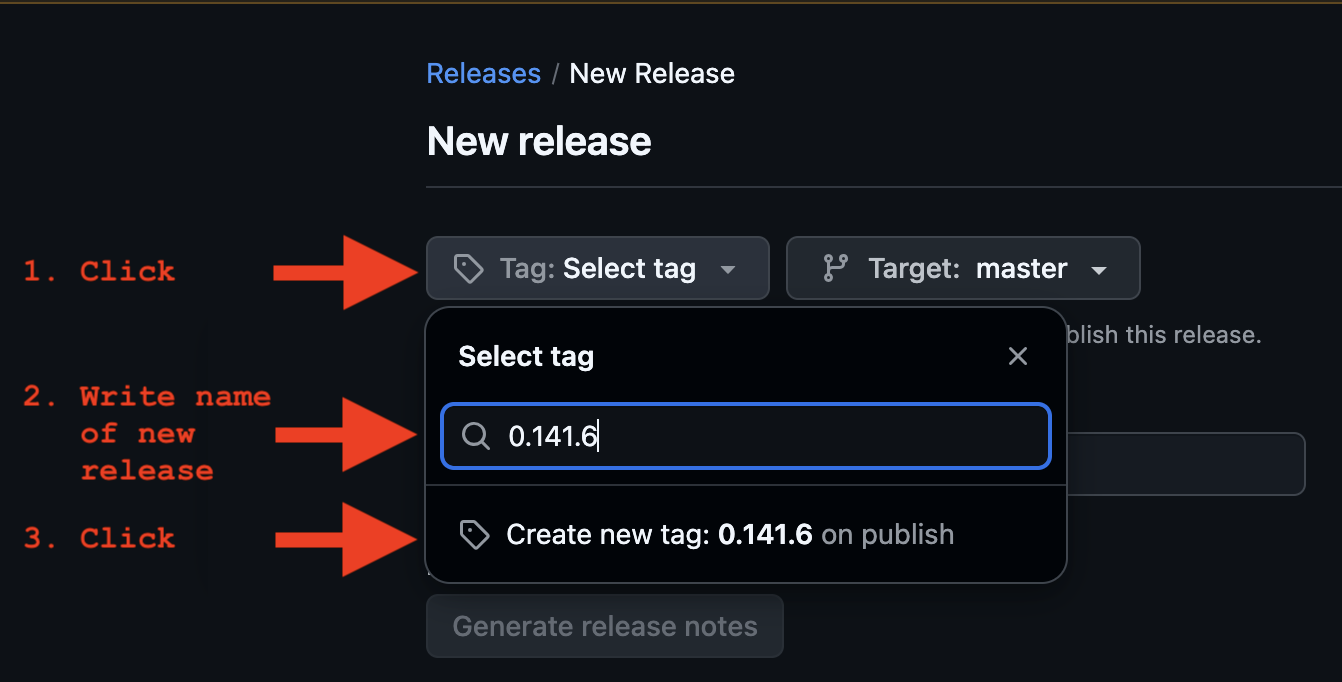
Let's say we want to release a new version 0.141.6. We need to:
-
Bump the
versioninpyproject.tomlto the desired version. -
Create a summary of the changes in
CHANGELOG.mdat the top of the file.When writing release notes for individual changes, it's useful to write them like mini announcements:
- Explain the context
- Then the change itself
- Then include an example
# Release notes

## v0.141.6

_2025-09-24_

#### Fix

- Tests - Fix bug when using `@djc_test` decorator and the `COMPONENTS`
  settings are set with `ComponentsSettings`
  See [#1369](https://github.com/django-components/django-components/issues/1369)
Note
When you include the release date in the format
_YYYY-MM-DD_, it will be displayed in the release notes.See
docs/scripts/gen_release_notes.pyfor more details.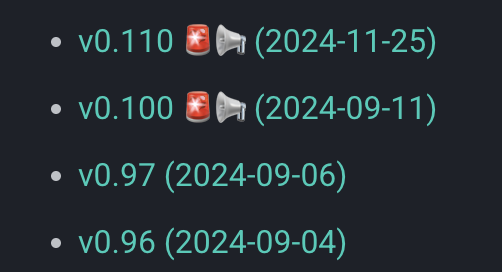
-
Create a new PR to merge the changes above into the
masterbranch. -
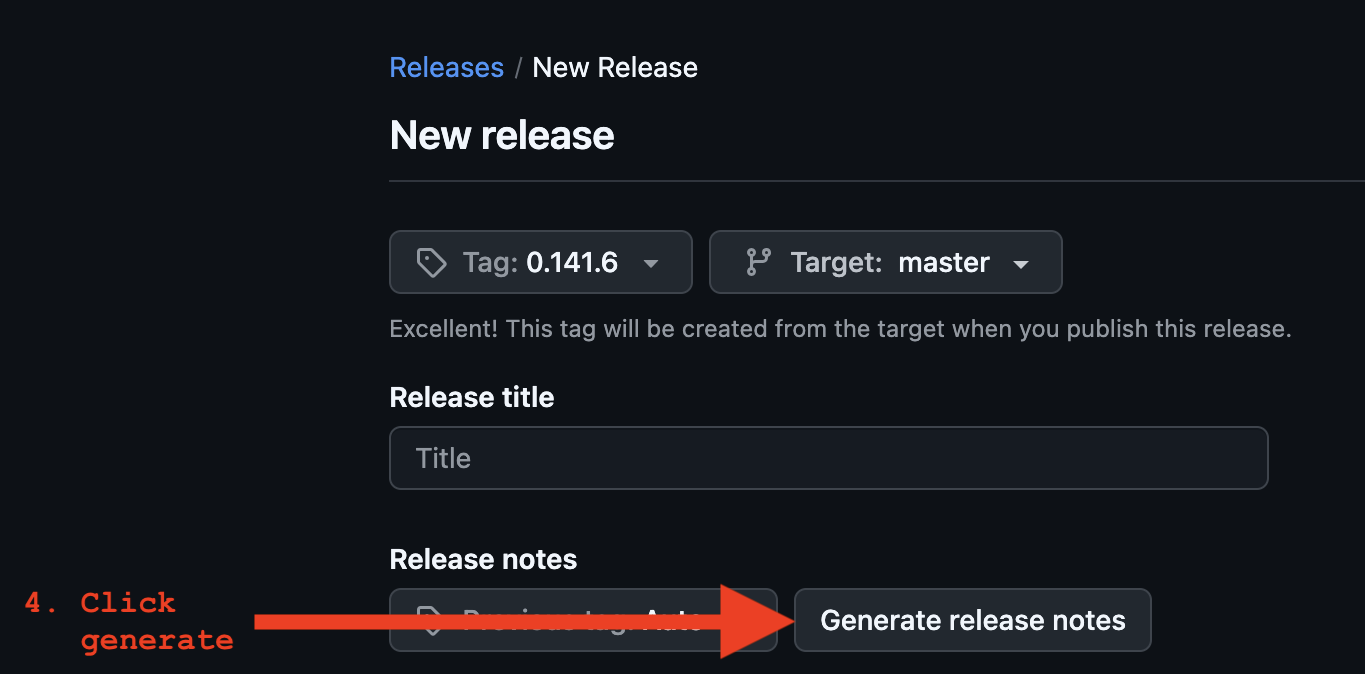
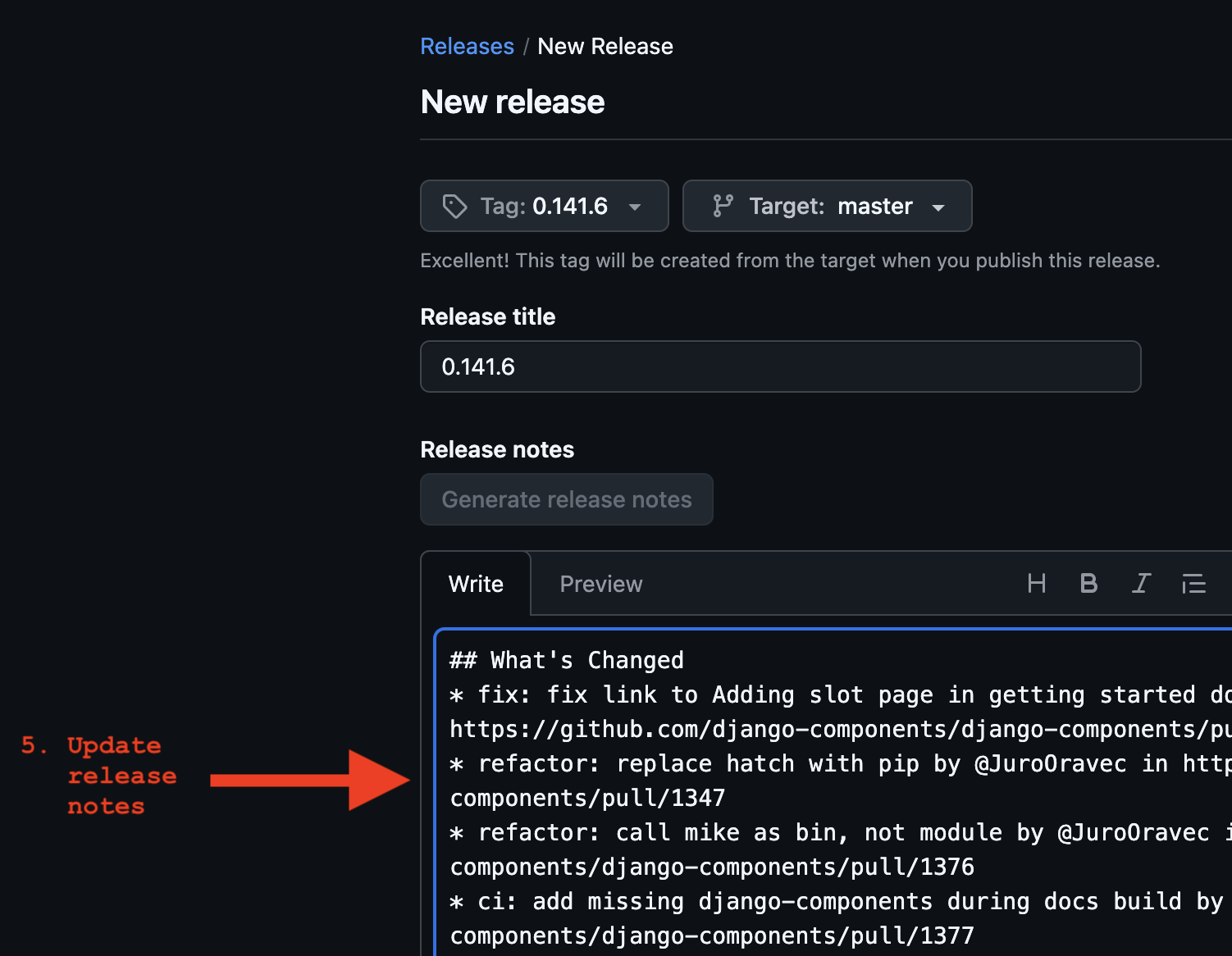
Create new release in Github UI.
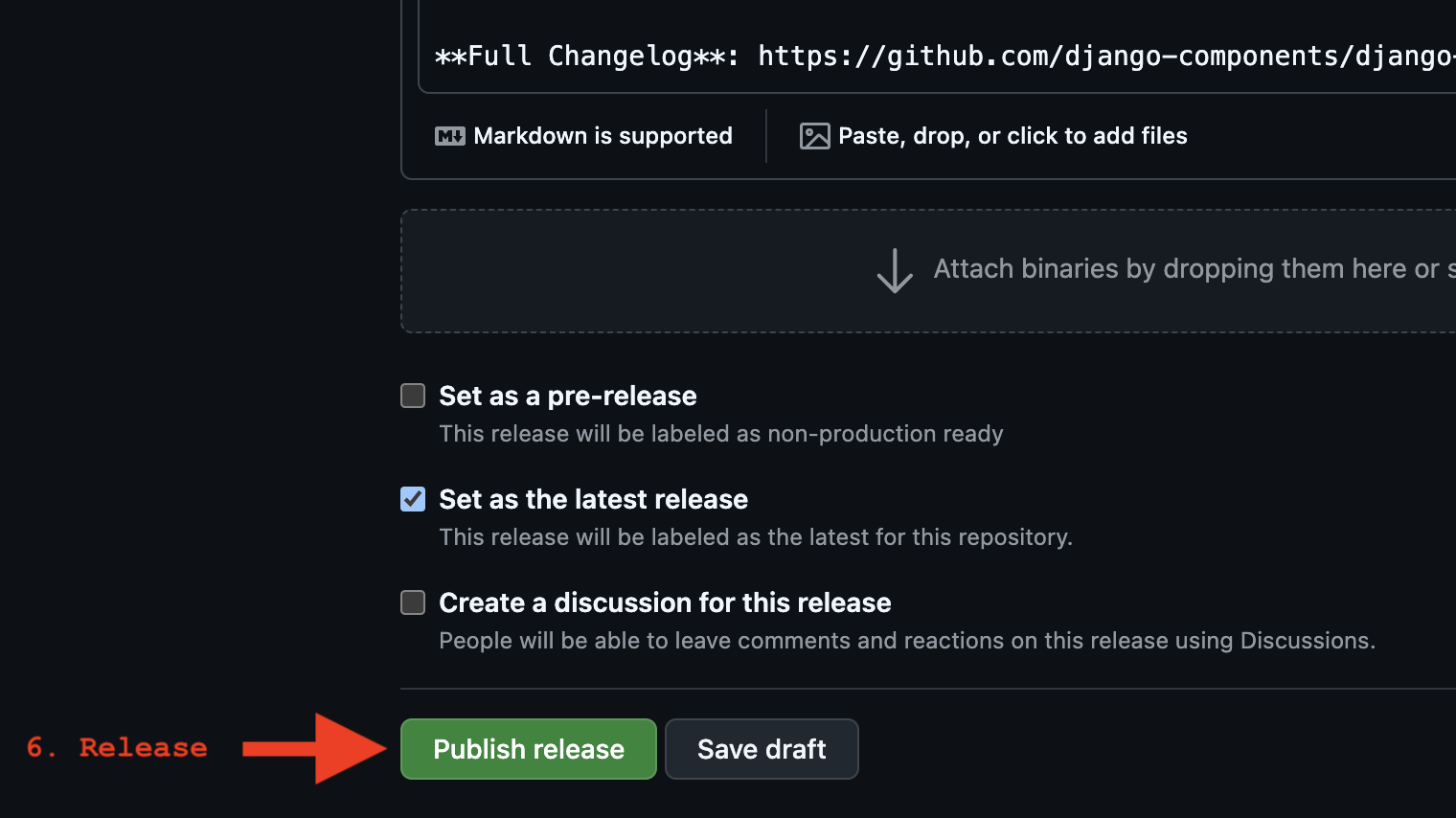
Semantic versioning¤
We use Semantic Versioning for django-components.
The version number is in the format MAJOR.MINOR.PATCH (e.g. 0.141.6).
MAJOR(e.g.1.0.0) is reserved for significant architectural changes and breaking changes.MINOR(e.g.0.1.0) is incremented for new features.PATCH(e.g.0.0.1) is incremented for bug fixes or documentation changes.
Development guides¤
Head over to Dev guides for a deep dive into how django_components' features are implemented.
Maintenance¤
Updating supported versions¤
The scripts/supported_versions.py script manages the supported Python and Django versions for the project.
The script determines supported versions by: 1. Fetching actively supported Python versions from https://devguide.python.org/versions/ 2. Fetching Django's compatibility matrix from https://docs.djangoproject.com/ 3. Finding the intersection: Python versions that are both actively supported by Python and compatible with supported Django versions
This means we only support Python versions that are still actively maintained by the Python team, even if Django still supports older deprecated versions (like Python 3.8 or 3.9).
The script runs automatically via GitHub Actions once a week to check for version updates. If changes are detected, it creates a GitHub issue with the necessary updates. See the maint-supported-versions.yml workflow.
You can also run the script manually:
# Check if versions need updating
python scripts/supported_versions.py check

# Generate configuration snippets for manual updates
python scripts/supported_versions.py generate
The generate command will print to the terminal all the places that need updating and what to set them to.
Updating link references¤
Docs links are checked in two places:
- MkDocs validates internal links, relative links, anchors, and navigation entries during the docs build.
- The
scripts/validate_links.pyscript validates external URLs and fragments, and can update URL references.
Run the MkDocs check before changing documentation links:
The external link checker exits with a non-zero status when it finds invalid URLs or fragments:
When a new version of Django is released, you can also use the script to update URLs pointing to the Django documentation.
First, you need to update the URL_REWRITE_MAP in the script to point to the new version of Django.
Then, you can run the script to update the URLs in the codebase.
Integrations¤
Discord¤
We integrate with our Discord server to notify about new releases, issues, PRs, and discussions.
See: - issue-discord.yml - release-discord.yml - pr-discord.yml - discussion-discord.yml
See this tutorial on how to set up the Discord webhooks.
The Discord webhook URLs are stored as secrets in the GitHub repository.
DISCORD_WEBHOOK_DEVELOPMENT- For new issuesDISCORD_WEBHOOK_ANNOUNCEMENTS- For new releases
Project management¤
Project board¤
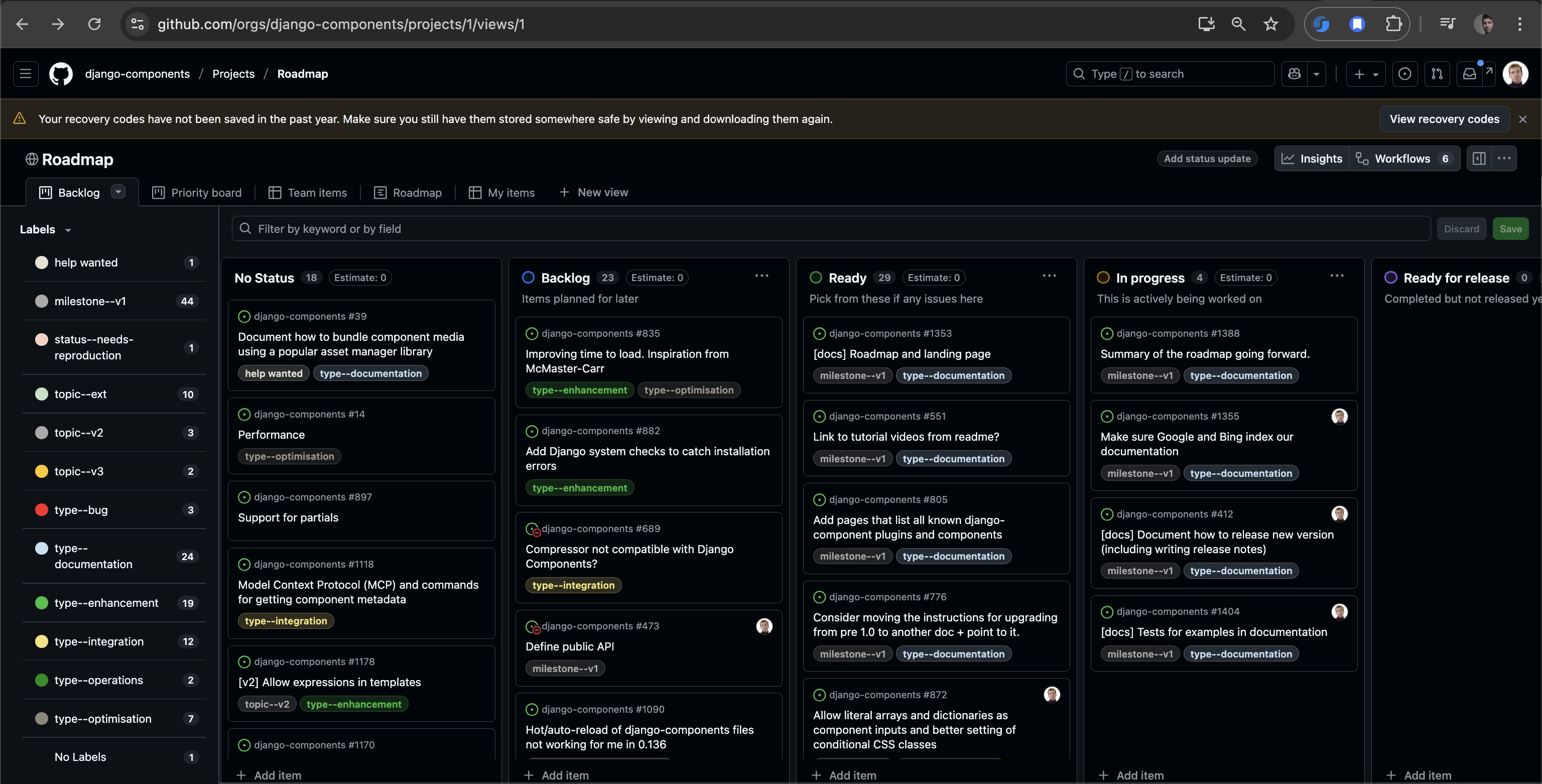
We use the GitHub project board to manage the project.
Quick overview of the columns:
- No status - Issues that are not planned yet and need more discussion
- 🔵 Backlog - Planned but not ready to be picked up
- 🟢 Ready - Ready to be picked up
- 🟡 In Progress - Someone is already working on it
- 🟣 Ready for release - Completed, but not released yet
- 🟠 Done - Completed and released
New issues are automatically added to the No status column.
To pick up an issue, assign it to yourself and move it to the 🟡 In Progress column.
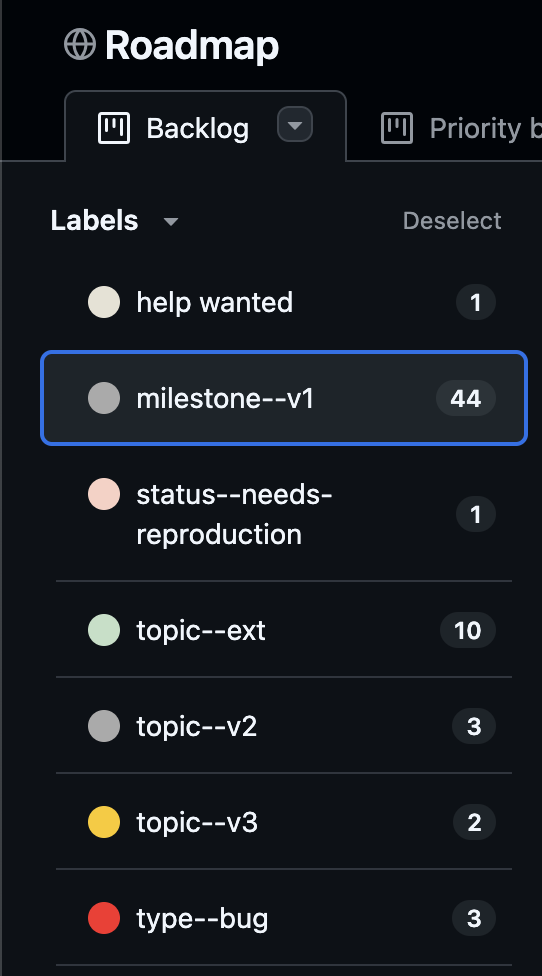
Use the sidebar to filter the issues by different labels, milestones, and issue types:
Priority¤
Which issues should be picked up first?
We suggest the following guideline:
- Bugs - First fix bugs and documentation errors.
- V1 release - Then pick up issues that are part of the v1 release milestone.
After that, pick what you like!
Labels¤
Labels help keep our project organized. See the list of all labels here.
Milestones¤
milestone--v1- Work to be done for the V1 release.
Issue types¤
type--bug- Bugs.type--documentation- Documentation changes.type--enhancement- New features and improvements.type--integration- Integrating with other libraries or systems.type--operations- Relating to "operations" - Github Actions, processes, etc.type--optimisation- Optimizing the code for performance.